How to Change Crosshair in CS2: Settings, Codes, and Commands
Learn how to customize your CS2 crosshair through game settings, console commands, import codes, and config files, plus which settings competitive players use.
A clear crosshair makes it easier to hold angles, track targets, and place your aim consistently in Counter-Strike 2. CS2 gives you several ways to build one: the regular settings menu, console commands, share codes, config files, and community workshop maps.
If you want to know how to change crosshair in CS2, the in-game menu is the fastest option. More experienced players can use console commands or an autoexec file for precise control, while crosshair codes are useful when you want to copy a setup without recreating every value manually.
How to Change and Customize Crosshair in CS2
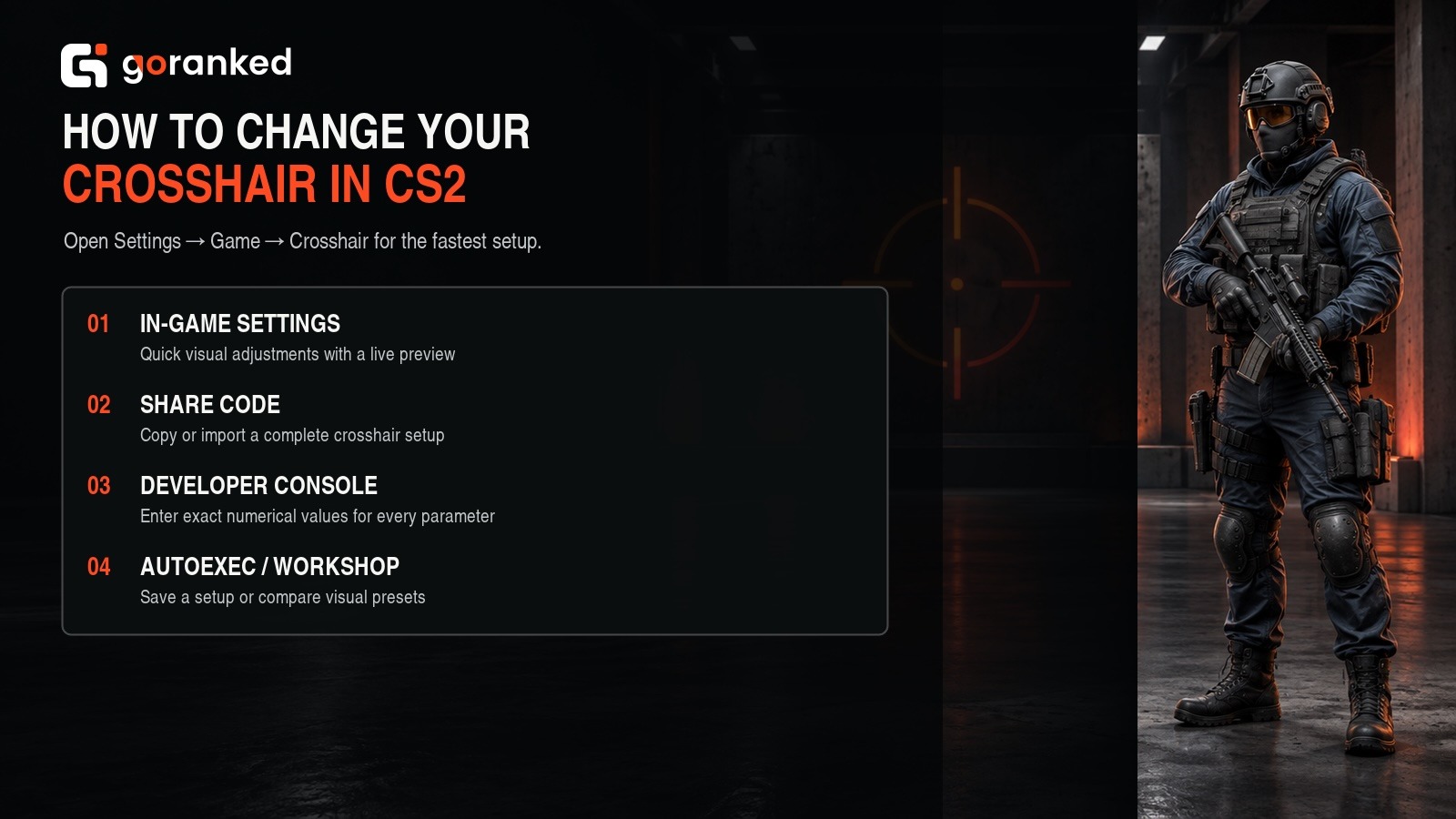
The easiest way to change your crosshair is through Settings → Game → Crosshair. The menu includes a live preview and controls for parameters such as style, length, thickness, gap, center dot, outline, and color. Changes apply immediately, making this the best starting point for testing different CS2 crosshair settings.
There are four practical ways to customize a crosshair:
- In-game settings: best for quick visual adjustments and beginners.
- Developer console: best for entering exact numerical values.
- Config or autoexec file: useful for saving a complete setup that you want to reuse.
- Workshop maps: useful for visually comparing presets and testing them in a controlled environment.
Using the Developer Console
For finer control, enable the console under Settings → Game → Enable Developer Console (~). Open it with the assigned console key and enter individual commands.
For example:
cl_crosshairstyle 4
cl_crosshairsize 2
cl_crosshairgap -3
cl_crosshairthickness 0.5
These commands create a compact Classic Static crosshair. You can change one value at a time and immediately see the result, which makes console customization particularly useful when sliders do not provide enough precision.
Saving a Crosshair in an Autoexec File
If you regularly use the same commands, save them in autoexec.cfg. On a standard Windows Steam installation, the relevant folder is typically:
…\Steam\steamapps\common\Counter-Strike Global Offensive\game\csgo\cfg
Despite the old Counter-Strike Global Offensive folder name, this is the directory currently used for CS2 autoexec files.
Add your preferred crosshair commands to the file, save it as autoexec.cfg, and load it through CS2. This method is especially useful when you play on different setups or want a backup of settings you have already tested.
Workshop maps can also provide visual crosshair editors and practice areas. However, check a map’s current Steam Workshop status before relying on it: some historically popular crosshair generators are now marked as removed or incompatible, so an older recommendation may no longer work with the current game.
How to Copy and Import a Crosshair in CS2
The quickest way to copy another player’s setup is with a CS2 crosshair code. These share codes begin with CSGO-, a naming format carried over from the previous game, and store the crosshair parameters in a single string.
To import a CS2 crosshair code:
- Copy the complete CSGO- code.
- Open Settings → Game → Crosshair.
- Select Share or Import near the crosshair preview.
- Paste the code and choose Import.
- Check the preview and test the crosshair in practice before using it in a competitive match.
The same menu lets you copy your own code, so save your current setup before replacing it. That makes it easy to restore if the imported crosshair does not suit your resolution or playstyle.
You can also copy a player’s crosshair while spectating in a match through the scoreboard interface. This is convenient when you notice a teammate’s setup that looks comfortable and want to test it without manually reproducing every parameter.
After importing a code, treat it as a starting point rather than a permanent solution. Different resolutions, aspect ratios, monitor sizes, and map backgrounds can make the same crosshair feel noticeably different.
Best CS2 Crosshair Settings and Console Commands
There is no universal set of best CS2 crosshair settings. A practical competitive starting point is a small Classic Static crosshair with strong contrast, no unnecessary movement, and enough space in the center to see distant targets.
Current professional setups illustrate how much individual values can vary. Donk uses a Classic Static crosshair with length 1, thickness 1.5, and gap -4; m0NESY uses length 1, thickness 1, and gap -4; ZywOo uses length 2, thickness 0.5, and gap -3. All three currently use static designs without a center dot.
| Player | Size / Thickness / Gap | Color |
|---|---|---|
| donk | 1 / 1.5 / -4 | Custom cyan-green |
| m0NESY | 1 / 1 / -4 | Cyan |
| ZywOo | 2 / 0.5 / -3 | Green |
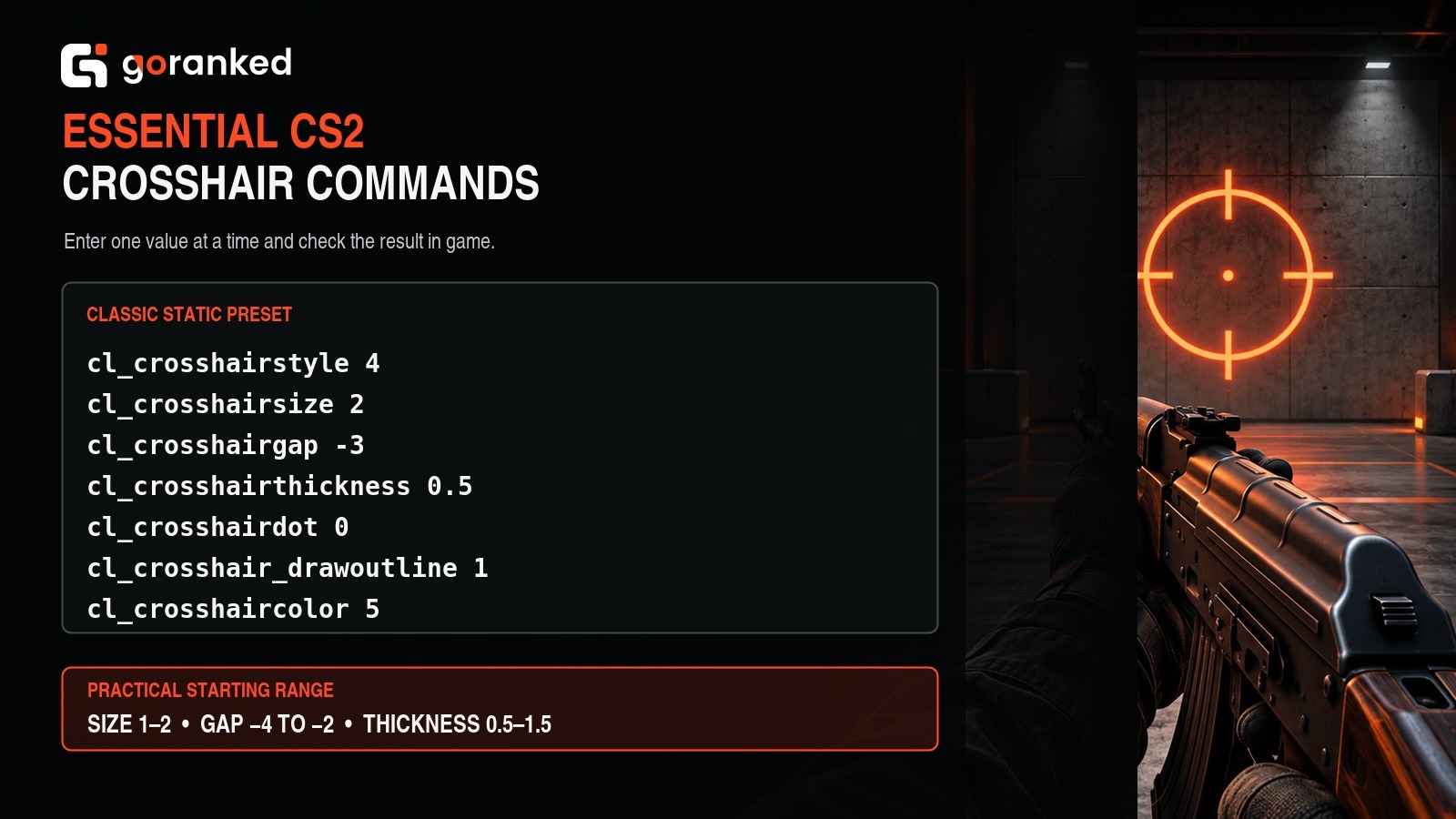
These examples suggest a useful baseline: start with size 1–2, a negative gap around -4 to -2, and thickness between 0.5 and 1.5. Then adjust according to visibility instead of copying a professional setup indefinitely.
The most useful CS2 crosshair commands are:
| Command | What It Changes | Example |
|---|---|---|
| cl_crosshairstyle | Crosshair behavior/style | cl_crosshairstyle 4 |
| cl_crosshairsize | Length of the crosshair lines | cl_crosshairsize 2 |
| cl_crosshairgap | Space around the center | cl_crosshairgap -3 |
| cl_crosshairthickness | Line thickness | cl_crosshairthickness 0.5 |
| cl_crosshairdot | Center dot on/off | cl_crosshairdot 0 |
| cl_crosshair_drawoutline | Outline on/off | cl_crosshair_drawoutline 1 |
| cl_crosshaircolor | Preset or custom color mode | cl_crosshaircolor 5 |
When cl_crosshaircolor 5 is selected, you can fine-tune the crosshair with cl_crosshaircolor_r, cl_crosshaircolor_g, and cl_crosshaircolor_b. RGB values let you create colors such as bright cyan or green that remain visible against a wide range of map textures.
To change crosshair color in CS2 effectively, test it against both light and dark surfaces. A bright color may be excellent on one map but disappear into another environment. Outline thickness can solve this problem, although many competitive players prefer no outline when their chosen color already provides enough contrast.
If you want the default crosshair CS2 provides, the safest approach is to reset the crosshair through the settings menu. If an old setup keeps returning after a restart, check your autoexec.cfg and remove any crosshair commands that overwrite the menu settings.
Crosshair customization can improve visibility and consistency, but it is only one part of competitive progress. If your broader goal is to boost your FACEIT Elo, combine a comfortable crosshair with stronger positioning, utility usage, communication, and repeatable aim practice. Changing settings every few matches usually makes adaptation harder, so once you find a clear setup, give yourself time to get used to it.
Tags
Articles by this author