Can You Play League of Legends on Mac?

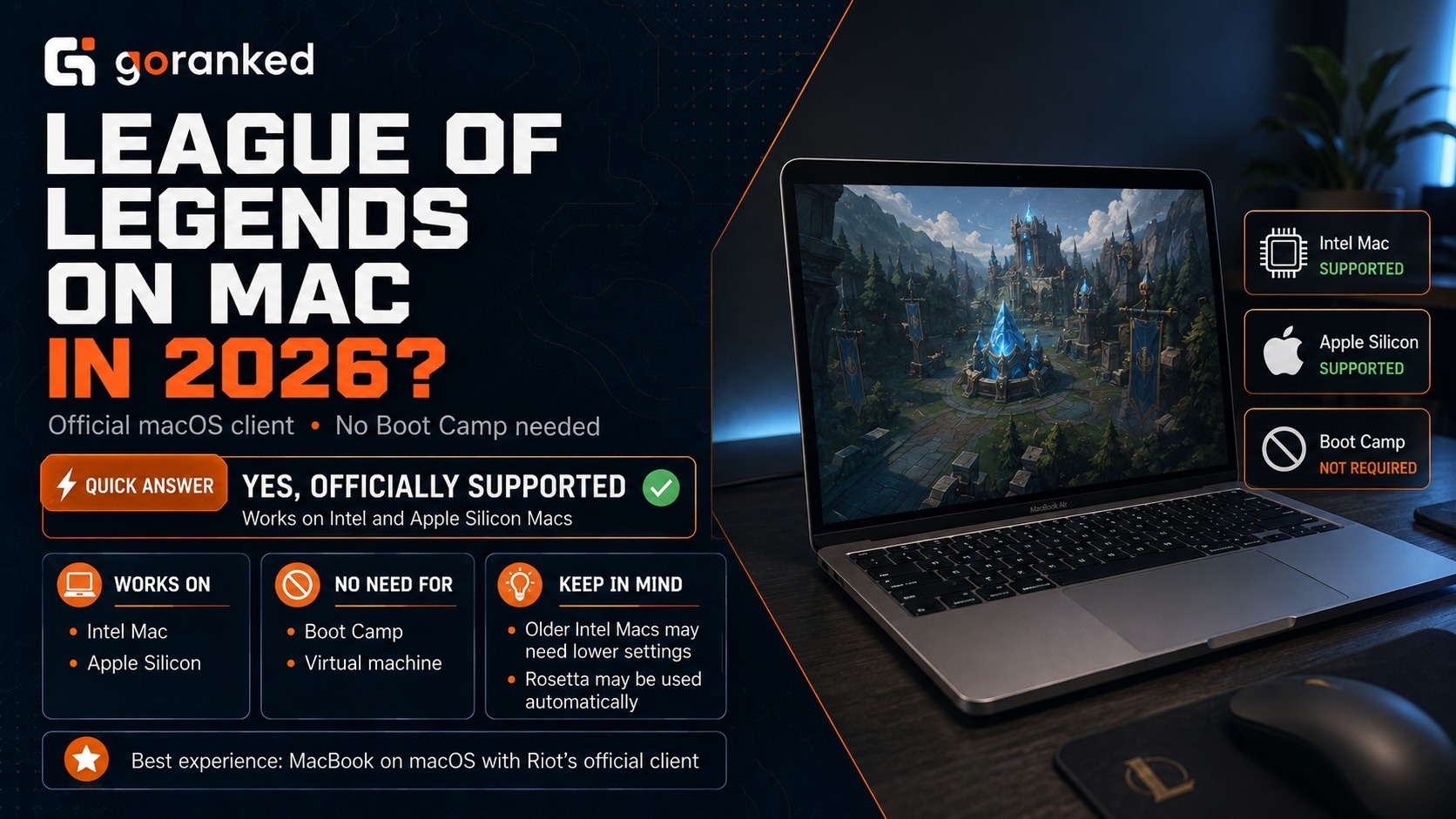
If you want to enter Summoner’s Rift from a MacBook, you do not need Windows, Boot Camp, or a virtual machine. League of Legends has an official macOS client that works on compatible Intel and Apple Silicon models. Here is what you need to know before downloading it.
Can You Play League of Legends on Mac?
Yes, League of Legends is officially available on macOS. Riot has a separate Mac client, so the game does not need Windows, Boot Camp, or a virtual machine.
The answer to can you play League of Legends on Mac is positive for both Intel and Apple Silicon models. The difference lies in performance. Current M-series computers have enough power for smooth gameplay, while older Intel Macs may need reduced settings to maintain a stable frame rate.
There is one technical detail behind LoL Mac support. Having an official macOS client does not necessarily mean that every part of it was built specifically for Apple silicon. Some components may still use Intel code, which M-series Macs handle through Rosetta.
Usually, this happens quietly in the background. The game does not need to be opened through Rosetta manually each time.
So, can you play League of Legends on Mac in 2026? Yes, the status has not changed this year. Riot’s current requirements include the Apple M1, and newer chips in the same family can run the game as well. Intel Macs remain an option if they support the required macOS version and Metal graphics.
Apple plans to provide full Rosetta support through macOS 27 and limit it starting with macOS 28. Nothing changes for players in 2026, but Riot may eventually need to update any remaining Intel-based parts of the client. That is the main long-term compatibility question for Apple Silicon.
The immediate limitations of League of Legends macOS support mostly concern old hardware. A Mac may not run the game if it cannot use a supported macOS version, lacks Metal compatibility, or has too little free storage. Very old Intel graphics can also produce unstable FPS even when the client itself opens.
Your Riot account is not affected by the computer you use. Champions, skins, purchases, and ranked progress remain available when you move between Windows and macOS. Sign in with the same account and make sure you select the correct regional server.
LoL on Mac: Requirements and Performance
Before searching for LoL download Mac, check whether the computer can actually handle the current client. Open Apple menu > About This Mac to find the chip, macOS version, and memory. Available disk space is shown under System Settings > General > Storage.
Riot’s current League of Legends system requirements list the following specifications:
| Component | Minimum | Recommended |
|---|---|---|
| Processor | Intel Core i5-750 or Apple M1 | Intel Core i5-3300 or Apple M1 |
| Graphics | Metal-compatible GPU | Radeon HD 6950, Intel UHD 630, or comparable Metal-compatible graphics |
| Video memory | 1 GB | 2 GB |
| Memory | 2 GB RAM | 4 GB RAM |
| Storage | 12 GB on an HDD | 16 GB on an SSD |
| Operating system | macOS 10.15 | macOS 11 or newer |
| Resolution | 1024 × 768 | 1920 × 1080 |
The official numbers are only a baseline. For example, Riot lists 12–16 GB of storage, but the game can occupy roughly 20–25 GB after the client downloads every file and patch. Temporary installation data also needs somewhere to go. Keeping about 30 GB free is safer.
The same applies to memory. The official LoL system requirements on Mac start at 2 GB of RAM, but that is not a comfortable target for a current macOS installation. The operating system, Riot Client, browser tabs, Discord, and background services all use memory. An 8 GB Mac gives the game much more breathing room.
Actual performance depends heavily on the model.
M1 and newer Apple silicon computers generally run League more smoothly than old Intel Macs. The base MacBook Air can target around 60 FPS, while Pro and Max configurations have additional room for higher resolutions or settings.
Cooling matters too. MacBook Pro models use fans and can maintain performance during longer sessions. The MacBook Air is silent and fanless, which is great for everyday use, but the chip may slow down after several demanding matches if it becomes too warm.
Performance on Intel Macs is less consistent. A model with dedicated Radeon graphics may still work well. An older MacBook with integrated Intel graphics will probably need low settings, especially during team fights.
For the first launch of League of Legends on MacBook, start with medium graphics, low shadows, and a 60 FPS cap. Use 1920 × 1080 or the closest resolution available on the display.
Then test it. Open Practice Tool, move around, cast several abilities, and watch how the game behaves when more effects appear. A quiet lane with one champion does not reveal much about late-game performance.
If the frame rate drops, turn down shadows and effects first. These options usually cost more performance than character quality. Lower the resolution only if the other changes do not help, since a softer image can make health bars and smaller visual cues harder to see.
Keep the MacBook connected to power and place it on a hard surface. Close heavy browser tabs, video applications, and background synchronization tools. Stable Wi-Fi or a wired connection will not increase FPS, but it can prevent ping spikes and delayed actions.
How to Play League of Legends on Mac
If you are wondering how to play LoL on Mac, begin with Riot’s official installer. The setup does not require any unusual workarounds.
Follow these steps:
- Open the official League of Legends download page.
- Select Download Mac Installer, not the Windows .exe file.
- Open the downloaded installation file from the Downloads folder.
- Follow the prompts to install Riot Client and League of Legends.
- Launch Riot Client from Applications.
- Sign in with your Riot account or create a new one.
- Check that the client is using the correct regional server.
- Wait for the remaining game files and latest patch to download.
- Click Play and start with the Tutorial or Practice Tool.
For the LoL download Mac query, Riot’s own download page is the safest option. Third-party websites may host an old installer or package it with files you do not need.
macOS can show a security warning the first time you open the installer. If the file came directly from Riot, go to System Settings > Privacy & Security and approve it there.
An M-series Mac may also ask to install Rosetta during the first launch. Accept the prompt and enter the Mac password if requested. According to Apple’s instructions, Rosetta then works automatically whenever an Intel-based component needs it.
The initial installer is small, but it does not contain the whole game. Riot Client downloads the remaining files after it opens, so the time required depends on the connection speed. The Play button becomes available once the current patch has finished installing.
If the download appears stuck, check the available storage and restart Riot Client. Persistent crashes may require the built-in repair option. Reinstalling the game with a fresh Riot installer is worth trying only if the repair does not help.
Once the client works properly, open the Tutorial or Practice Tool before joining a regular match. This confirms that the map loads, controls respond correctly, and the game remains stable.
If you later want help progressing through ranked divisions, GoRanked offers a LoL rank boost.
Tags
Articles by this author