Knife Commands CS2: How to Give Yourself Any Knife
CS2 knife commands let you spawn and test different knife models in a local practice match without buying them. You can compare a Butterfly Knife, Karambit, M9 Bayonet, Huntsman Knife and every other available model, including their draw, inspect and attack animations.
What Are CS2 Knife Commands?
CS2 knife commands are developer console inputs that create or change knife models during a practice session. Each CS2 knife is assigned a numerical subclass ID. The Butterfly Knife uses ID 515, for example, while the Karambit uses 507.
There are two useful commands:
- subclass_create [ID] spawns a new knife where you are aiming.
- subclass_change [ID] changes an existing dropped knife into another model.
The first method is usually easier: drop your current knife, look at an open section of the ground, create the model you want and pick it up.
The second method is convenient when repeatedly comparing knives. Drop the knife, aim directly at it and use subclass_change with the next ID.
These commands can help you compare:
- Draw and inspect animations.
- Attack sounds and animations.
- The size and position of each knife on screen.
- How the model looks with your viewmodel settings.
- Visibility under different map lighting.
- How the knife feels while running, jumping and switching weapons.
Knife commands do not unlock an item or add it to your Steam inventory. The spawned knife only exists during the current practice session and may disappear after death, a round restart or a map change.
How to Use the CS2 Give Knife Command
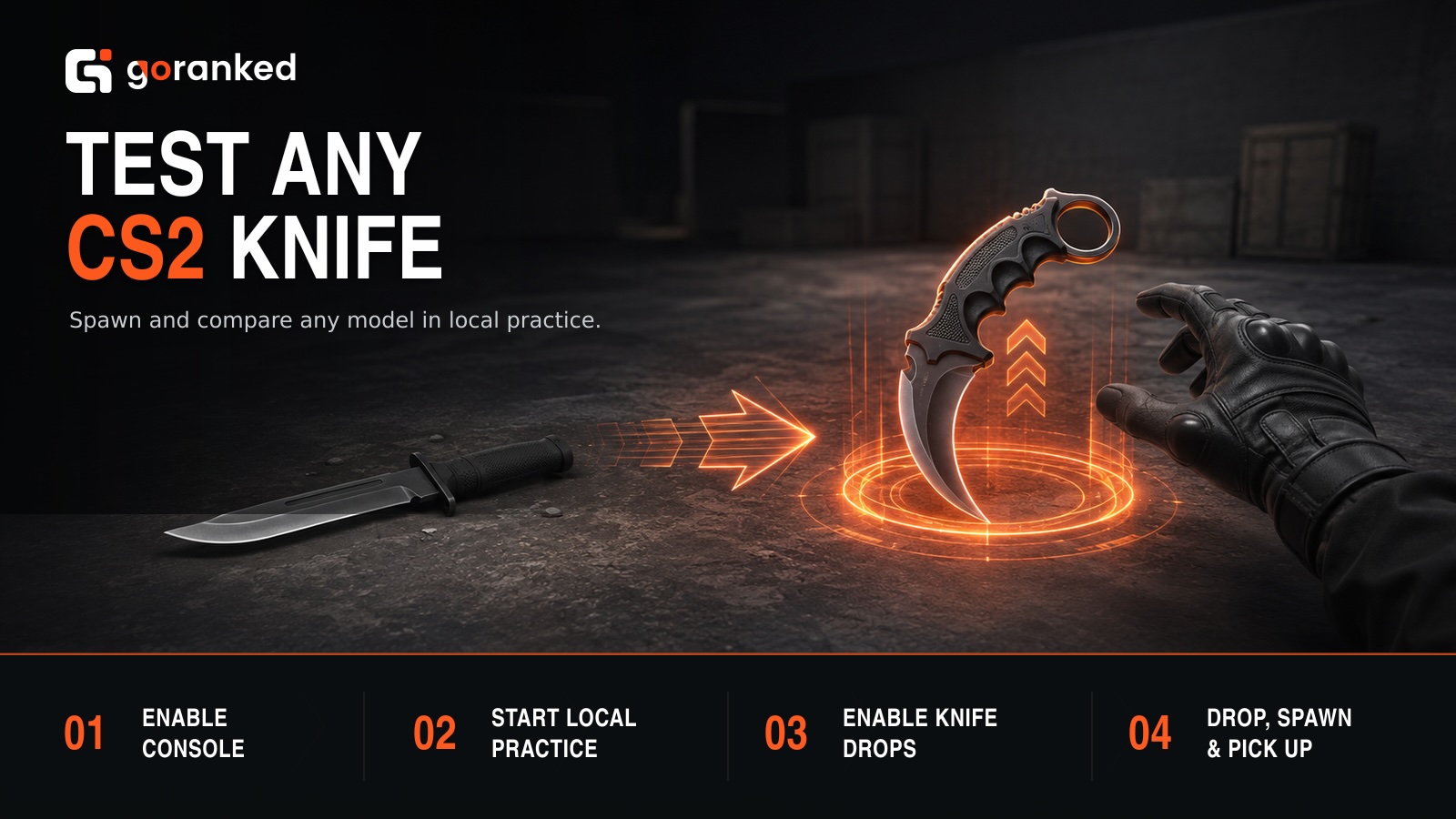
The CS2 give knife command uses subclass_create or subclass_change. Here’s the detailed action algorithm for how to give yourself a knife in CS2 command.
1. Enable the Developer Console
Open Counter-Strike 2 and follow these steps:
- Select Settings from the main menu.
- Open the Game tab.
- Find Enable Developer Console (~).
- Change the setting to Yes.
- Press the tilde key (~) to open the console.
If the console does not open, check its assigned key in the keyboard settings. Switching to an English keyboard layout may also help.
2. Start a Practice Match
Launch a local practice map or join a private server that you control. Knife commands will not work on official Valve servers because you cannot enable protected server commands there.
After the map loads, open the console and enter: sv_cheats 1
This enables cheat-protected commands for the current server. Using sv_cheats in your own practice match does not add anything to your inventory or modify your matchmaking account.
A local server is also useful for practicing other mechanics. For example, our movement guide explains how to bhop in CS2 using console commands and set up a convenient mouse-wheel jump bind.
3. Enable the Drop Knife Command
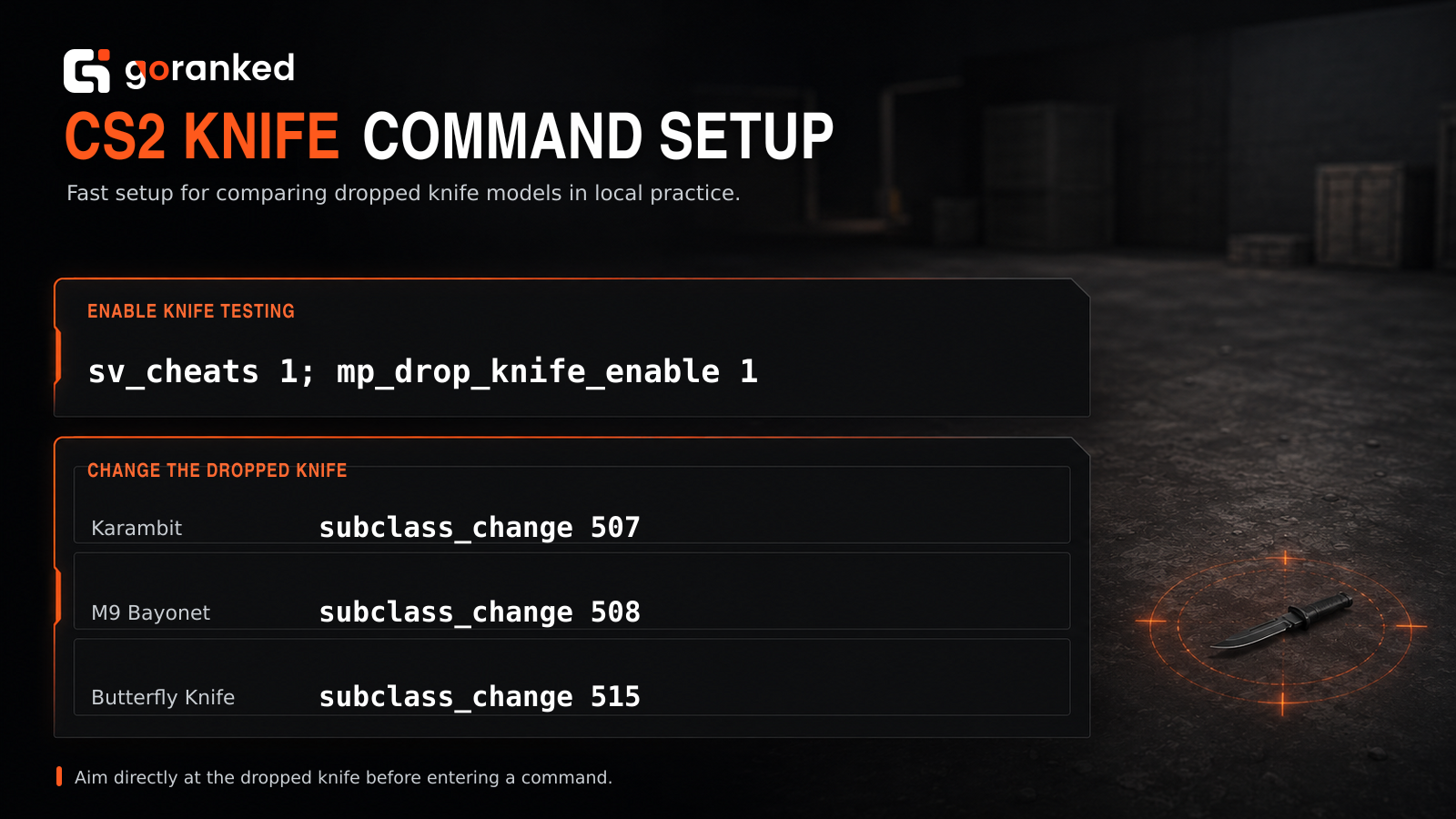
Players normally cannot drop their knives in CS2. To enable this option, enter: mp_drop_knife_enable 1
You can also activate both required settings at once: sv_cheats 1; mp_drop_knife_enable 1
Equip your knife and press the regular drop key, which is G by default.
4. Spawn a New Knife
After dropping your current knife, look at an empty area of the ground and enter a subclass_create command.
| Knife | Command |
|---|---|
| Karambit | subclass_create 507 |
| M9 Bayonet | subclass_create 508 |
| Butterfly Knife | subclass_create 515 |
The selected knife should appear near your crosshair. Close the console and walk over it to pick it up.
All CS2 Knife Commands List
The following table contains the available CS2 knife console commands and corresponding subclass IDs. Use subclass_create to spawn a new knife or subclass_change while aiming at a dropped knife.
| Knife | ID | Spawn command | Change command |
|---|---|---|---|
| Bayonet | 500 | subclass_create 500 | subclass_change 500 |
| Classic Knife | 503 | subclass_create 503 | subclass_change 503 |
| Flip Knife | 505 | subclass_create 505 | subclass_change 505 |
| Gut Knife | 506 | subclass_create 506 | subclass_change 506 |
| Karambit | 507 | subclass_create 507 | subclass_change 507 |
| M9 Bayonet | 508 | subclass_create 508 | subclass_change 508 |
| Huntsman Knife | 509 | subclass_create 509 | subclass_change 509 |
| Falchion Knife | 512 | subclass_create 512 | subclass_change 512 |
| Bowie Knife | 514 | subclass_create 514 | subclass_change 514 |
| Butterfly Knife | 515 | subclass_create 515 | subclass_change 515 |
| Shadow Daggers | 516 | subclass_create 516 | subclass_change 516 |
| Paracord Knife | 517 | subclass_create 517 | subclass_change 517 |
| Survival Knife | 518 | subclass_create 518 | subclass_change 518 |
| Ursus Knife | 519 | subclass_create 519 | subclass_change 519 |
| Navaja Knife | 520 | subclass_create 520 | subclass_change 520 |
| Nomad Knife | 521 | subclass_create 521 | subclass_change 521 |
| Stiletto Knife | 522 | subclass_create 522 | subclass_change 522 |
| Talon Knife | 523 | subclass_create 523 | subclass_change 523 |
| Default Knife | 524 | subclass_create 524 | subclass_change 524 |
| Skeleton Knife | 525 | subclass_create 525 | subclass_change 525 |
| Kukri Knife | 526 | subclass_create 526 | subclass_change 526 |
For the M9 Bayonet CS2 command, use subclass_create 508. The Huntsman Knife CS2 command is subclass_create 509, while the Butterfly Knife CS2 command is subclass_create 515.
How to Test All CS2 Knives
The fastest way to test all CS2 knives is to transform the same drop knife repeatedly rather than creating a new weapon every time.
Use this process:
- Enter sv_cheats 1; mp_drop_knife_enable 1.
- Equip your current knife and press G.
- Aim directly at the dropped knife.
- Enter a subclass_change command from the table.
- Pick up the changed knife.
- Press F to play its inspect animation.
- Switch to another weapon and back to test the draw animation.
- Try both attack buttons and listen to the sounds.
- Drop the knife again and repeat the process with another ID.
When comparing knives, check more than the standard inspect animation. Different CS2 knives can vary considerably in how they look and feel during normal play.
Pay attention to:
- The initial draw animation.
- Repeated weapon switching.
- Standard and rare inspect animations.
- Left- and right-click attacks.
- Running and jumping animations.
- The amount of screen space occupied by the model.
- Visibility in bright and dark areas of the map.
- Knife sounds and animation speed.
To compare knife models under different lighting conditions without running across the entire map, you can use noclip. Our separate guide explains how to fly in CS2 and bind noclip for faster movement around practice maps.
Some special animations appear randomly. You may need to draw or inspect a Butterfly Knife, Falchion Knife, Skeleton Knife, Nomad Knife or another model several times before seeing every available sequence.
If you are looking for CS2 knife commands with skins, standard console commands only change the knife model. They do not let you choose a specific finish, float value, paint seed or pattern. To preview particular CS2 skins, use an in-game inspect link or join a CS inspect server that supports skin inspection commands.
Articles by this author