How to Kick Bots in CS2
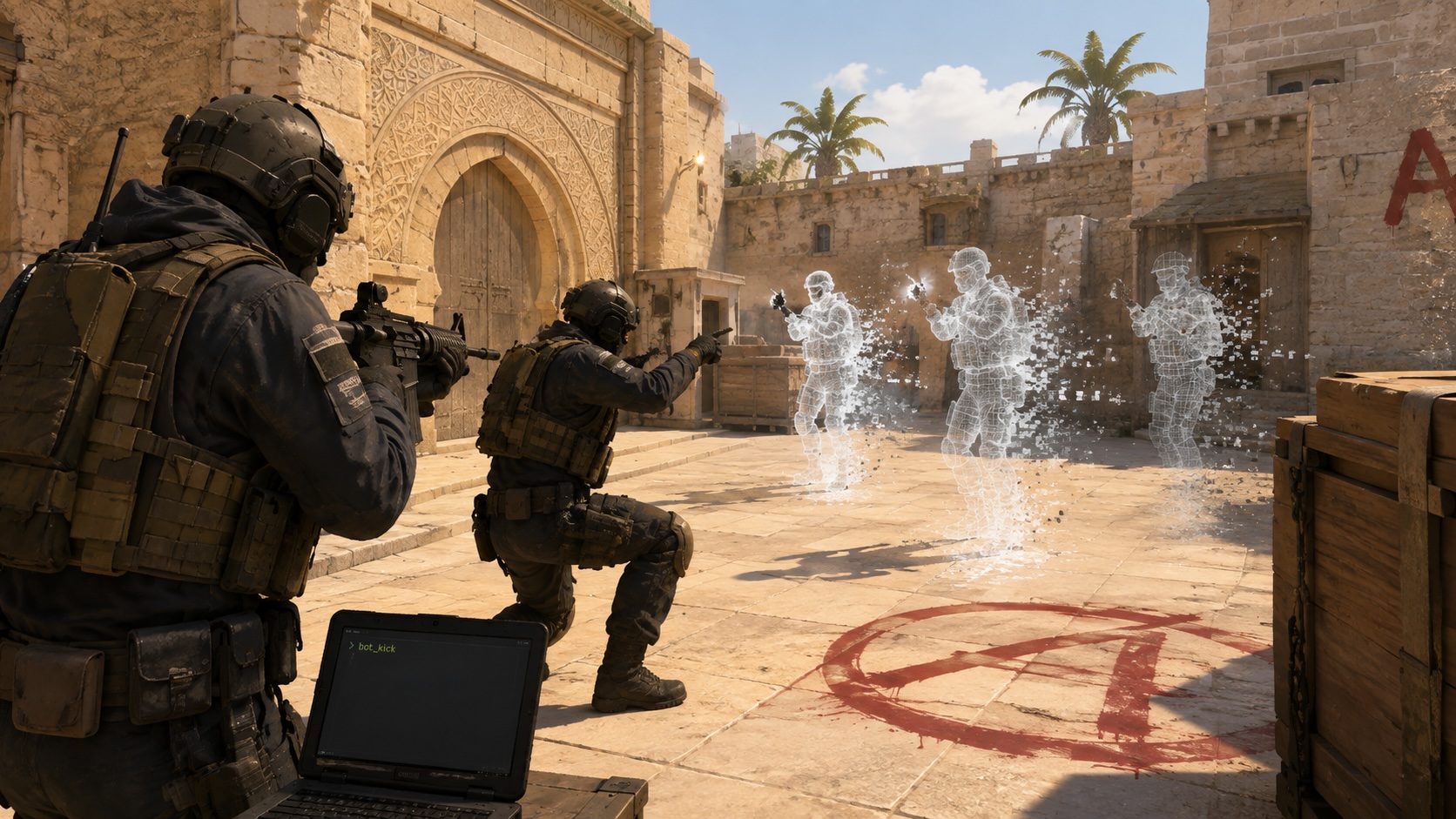
Bots are useful for aim practice and learning maps, but they can interfere with grenade lineups or custom scenarios. Learn how to remove all bots or one team, add new opponents, and adjust their difficulty through the CS2 console.
The fastest way to remove every bot in Counter-Strike 2 is to open the developer console, enter bot_kick, and press Enter. If the bots return, use bot_quota 0 to set their number to zero.
Below, we explain the essential commands for removing, adding, and configuring bots on a local practice server.
CS2 Bots and How to Use Them
CS2 bots are computer-controlled players that can replace real participants in a match. They are available in local practice sessions, private lobbies, and servers where you have administrator access. Bot commands cannot normally be used in official matchmaking.

Bots are useful for:
- warming up before a match;
- practicing aim and recoil control;
- checking wallbangs and prefire angles;
- learning positions on a map;
- practicing site entries and retakes;
- creating one-versus-many scenarios;
- setting up stationary targets.
Knowing how to remove bots in CS2 is helpful when you need an empty map for grenade practice or want to create a specific training scenario. You can remove every bot, clear only one team, or kick an individual bot by name.
The best method for how to get rid of bots in CS2 depends on your goal. Use bot_kick to clear the entire server or a team-specific version of the command to keep opponents while removing teammates.
For longer sessions without constant round restarts, you can also configure infinite round time in CS2.
Before entering commands, enable the developer console:
- Open the Counter-Strike 2 settings.
- Select the Game tab.
- Set Enable Developer Console to Yes.
- Start a local or private match.
- Press ~ to open the console.
If the console does not open, check its key binding in the keyboard settings and assign another key if necessary.
How to Remove, Kick, and Add Bots in CS2
The same command is used whenever you need to remove bots from the server. It removes all computer-controlled players immediately, so you do not have to wait for the round to end.
The main command to remove bots and its useful variations are listed below:
| Command | What it does |
|---|---|
| bot_kick | Removes all bots |
| bot_kick t | Removes Terrorist bots |
| bot_kick ct | Removes Counter-Terrorist bots |
| bot_kick “Name” | Removes a specific bot |
| bot_add | Adds a bot to an available team |
| bot_add_t | Adds a Terrorist bot |
| bot_add_ct | Adds a Counter-Terrorist bot |
| bot_quota 0 | Sets the number of bots to zero |
The primary command is bot_kick. Entering it without additional parameters removes bots from both teams.
The search phrase remove bots command CS2 usually refers to the same command. To clear only one side, use bot_kick t for Terrorists or bot_kick ct for Counter-Terrorists.
A specific CS bot can be removed by name. For example, bot_kick “Albert” removes only Albert. You can find the bot’s name on the scoreboard. Quotation marks are recommended when the name contains spaces.
If bots return after being removed, enter bot_kick followed by bot_quota 0. The first command clears the server, while the second prevents the game from maintaining the previous bot quota. This setting may reset after changing maps or leaving the match.
To add bots, use:
- bot_add to add a bot to an available team;
- bot_add_t to add a Terrorist;
- bot_add_ct to add a Counter-Terrorist.
Repeat the relevant command if you need multiple opponents.
If a bot does not join, enter mp_autoteambalance 0 and mp_limitteams 0. These commands disable automatic balancing and allow the two teams to have different numbers of players.

How to Set Up Bots for CS2 Practice
The simplest answer to how to remove bots in CS2 practice is to enter bot_kick and then bot_quota 0. This gives you an empty map for practicing grenades, movement, wallbangs, and lineups.
To completely disable bots during the current session, keep the quota at zero. When you want to bring them back, use bot_add_t, bot_add_ct, or set a new value such as bot_quota 5.
For uneven practice scenarios, enter mp_autoteambalance 0 and mp_limitteams 0 before adding opponents. The first command turns off automatic team balancing, while the second removes the limit on the difference between team sizes.
To place a bot in a specific position, first add one with bot_add_t or bot_add_ct. Then enable sv_cheats 1, aim at the required location, and enter bot_place. This command moves an existing bot rather than creating a new one.
Use bot_stop 1 to freeze bots in place and bot_stop 0 to restore their normal behavior. This is useful for checking prefire angles, wallbangs, and lines of sight. You can also combine the same practice server with CS2 bunnyhop commands to work on movement.
The CS2 bot difficulty setting is controlled through the bot_difficulty command. It accepts standard values from 0 to 3:
- 0 — easy;
- 1 — normal;
- 2 — hard;
- 3 — expert.
For players asking how to change bot difficulty in CS2, the process is straightforward: set the required value before adding opponents. For example, enter bot_difficulty 3, then use bot_add_t or bot_add_ct.
If the new difficulty does not apply, remove the existing bots and add them again.
To create a one-versus-five practice match against Counter-Terrorist bots, enter the following commands in order:
- mp_autoteambalance 0
- mp_limitteams 0
- bot_kick
- bot_join_team ct
- bot_difficulty 3
- bot_quota 5
- mp_restartgame 1
If you are playing as a Counter-Terrorist, replace bot_join_team ct with bot_join_team t.
For basic equipment control, bot_knives_only restricts bots to knives, while bot_all_weapons restores access to all weapons. To test individual knife models, see our guide to CS2 knife commands. You can browse available finishes for knives and other weapons on the CS2 skins marketplace.
If a command does not work, make sure you are playing locally or on a server where you have administrator access. Commands such as bot_place and bot_stop may also require sv_cheats 1.
Articles by this author