


 Bewertung-Boost


 Spielwährung


 Perplexity
 ChatGPT
 Grok
Grok
 Claude
 Post on Reddit
Verbessern Sie Ihr Spielerlebnis mit unseren Dienstleistungen
Hol das Beste aus deinem Spiel heraus – mit professionellen Lösungen.
Best CS2 Settings for Performance & Precision
Getting the best CS2 settings for performance & precision is not about copying a pro preset line for line. It is about building a setup that keeps your FPS stable, your image readable, and your input feeling consistent across every fight. If your settings are too high, you bleed frames and responsiveness. If they are too low, models blend into the map, edges smear, and you lose the visual cues that decide duels. The goal is simple: a clean picture, reliable performance, and zero surprises when you swing, tap, or spray. If you want to save time on the climb, you can order a CS2 boost on the GoRanked platform and pick the format and timing that suit you.
Video
Video settings are the foundation of best CS2 video settings because they decide how clearly you see targets and how smoothly your game runs under pressure. This section focuses on the core choices that actually change outcomes: aspect ratio and resolution, the settings that trade FPS for clarity, and the few options that quietly affect gameplay information rather than just visuals. The point is not chasing the absolute highest FPS number, it is making sure visibility stays sharp while your performance stays stable, so your crosshair work and reactions translate the same way every match.
Video Setup (Aspect Ratio, Resolution, Refresh Rate)
CS2 video settings are always a tradeoff between stable FPS and usable visual information. Dropping everything too low can make players harder to spot, so the target is consistent performance without turning the image into a blur. Many pros avoid maxing resolution not only for performance, but because a slightly cleaner, less cluttered image can make targets easier to track. If you are coming from another title and your PC is decent, start with 1920×1080, lock in a baseline, then test alternatives one change at a time.
Aspect ratio is personal preference, but the pro scene heavily leans 4:3, with 1280×960 stretched being the most common choice. The upside is simple: stretched makes enemies appear larger on your screen, which can help with visibility and hitting shots. The downside matters: you lose edge vision because the sides get cut off, and that missing information will sometimes get you killed. Stretched also changes horizontal movement perception, so models can feel faster during peripheral tracking. If you want a more consistent view and movement read, 16:9 is a safer starting point for a best CS2 settings baseline. Whatever you choose, keep it long enough to judge it properly before swapping.
Performance & Clarity (Core Settings + AA + Textures + AO + HDR)
VSync should be off. Boost Player Contrast sounds like a free advantage, but it costs FPS and is not very noticeable in practice, which is why many pros keep it off. Anti aliasing is mainly about clarity: if you play close to native resolution you can often leave MSAA off to save frames, but if you run heavily downscaled resolutions, CMAA2 can add useful clarity without a huge performance hit.
Model Detail is not just cosmetic. On low, models can look off in a way that can mess with headshot reads, and testing has shown Medium can even perform slightly better on some systems, so Medium is a solid set and forget option. Texture Filtering is one of the rare settings where higher can be fine. Bilinear has shown worse FPS in testing compared to other options, while anisotropic 16× is generally recommended unless your PC is extremely old.
Shader Detail and Particle Detail do not give the old CS:GO edge for reading smokes or mollies because CS2 has normalised those visuals, so setting both to low is typically the best call. Ambient Occlusion is counterintuitive because it can introduce extra shadowing on surfaces that changes what you visually read, so it should be at least medium. HDR can feel subtle, but HDR Quality can reduce the grainy look many players complain about, making it worth using if you want a cleaner image without sacrificing readability.
The practical CS2 FPS optimization rule is simple: only lower clarity related settings to the point where silhouettes, heads, and shoulder peeks still read instantly.
Shadows (Gameplay Advantage vs FPS)
Shadows are not just eye candy in CS2, they affect gameplay. On low, shadows can turn off entirely, and on medium they start disappearing at normal engagement ranges, which removes information you can use for timing and pre aim. That is why most pros run Global Shadows on high or very high even when they lower other settings.
There has been a workaround to keep shadows on while running low for FPS by editing values in the Steam user folder, but it is unstable. Valve changes have made it reset depending on whether you tweak settings or restart the game, so it is not reliable long term. If your system can handle it, running high or very high is the consistent solution for best CS2 video settings.
Upscaling & Latency (FSR + NVIDIA Reflex)
FidelityFX Super Resolution depends heavily on your PC and your resolution. Near native, it can give a real FPS lift without ruining clarity, so Balanced or Quality is a reasonable starting point. On heavily downscaled setups, FSR on low can wreck visibility, and increasing it may not cost much FPS, which is why many pros disable it when they already play stretched low resolution and want the cleanest outlines possible.
NVIDIA Reflex is harder to pin down with one universal answer, but it generally should not hurt performance, so Enabled is a safe default for best CS2 settings for performance & precision. Enabled + Boost is worth testing and tends to make more sense on stronger systems, but the final check is feel and consistency in real matches rather than chasing a perfect number.
Audio
CS2 audio settings decide how fast you can turn sound into a clean decision: swing, hold, rotate, or spam through a smoke. For best CS2 settings long term, the priority is reliable positioning cues, not “louder” audio. The source testing compares multiple players across scenarios and lands on a practical pattern: Natural wins for readability, Left Right Isolation sits in a mid band for balance, and Perspective Correction is a hard disable if you want consistent CS2 audio cues.
EQ Profile
For best CS2 audio settings, the label is misleading. Crisp sounds like the obvious pick for clarity, but in testing Natural consistently made it easier to locate footsteps and movement with fewer “false reads” on distance and direction. If your goal is CS2 settings for performance & precision, Natural is the default because it improves positional confidence rather than just making highs stand out.
Recommended EQ Profile: Natural.
Why: Better sound location performance in testing than Crisp.
When not to use Crisp: If you keep misreading where steps are coming from, especially in fast rotates.
Left Right Isolation
Left Right Isolation is a trade. Higher values can make left vs right direction feel more obvious, but you lose some fine detail for exact pinpointing when you are trying to line up a spam through a smoke or track a tiny movement shift. The source consensus lands in a middle range as the most “usable” across players.
Recommended Left Right Isolation: 50 to 70 percent.
Higher than that: Easier broad direction, worse micro pinpointing in tight situations.
Lower than that: More blended stereo image, can feel slower to decide left vs right.
Perspective Correction
This is the setting the source calls out as actively harmful. It is on by default, but it changes the way sounds are perceived in a way that multiple people find disorienting. Linus Tech Tips is specifically mentioned as saying it ruined their ability to hear anything. For best CS2 audio settings, this is a straight off switch.
Recommended: Perspective Correction OFF.
Why: It distorts positional reads and makes audio harder to trust.
Essential Audio Toggles
From the source, the clean rule is: keep most optional music and extra audio distractions off, keep the one warning that adds real match value. Recommended toggles for best CS2 settings:
10 second warning: ON.
Most other optional audio and music: OFF.
MVP music: Mute when both teams are alive.
Controls
CS2 control settings are about reducing “input tax” so your hands never waste time during fights. The cleanest CS2 settings philosophy is: the fewer steps it takes to do something mid round, the more consistent your decisions become. For best CS2 settings for performance & precision, controls matter as much as FPS because a wrong weapon pull or a late smoke is a lost duel even on 400 FPS.
Crosshair Basics
Most pros converge on the same idea because it works under pressure: a small, static crosshair, usually without a dot. It stays readable when you strafe, it does not bounce around your screen, and it keeps your focus on head level. If you are still learning recoil and movement timing, two assists can be useful early on, but they are not always “forever” settings.
Dynamic crosshair helps because it shows you when your movement is breaking accuracy, which speeds up learning counter strafing and stop shoot timing. Follow recoil is the other training option, but the source points out two real problems: it behaves oddly on pistols that do not have a normal recoil pattern, and burst shooting can feel inconsistent because the crosshair motion fights what your hand is trying to do. A practical approach for best CS2 crosshair settings is to start static, then only use dynamic or follow recoil if you can clearly measure improvement in your sprays and taps over multiple sessions.
Sensitivity (eDPI Range)
The source frames sensitivity as “not anything goes” if you want consistency. Pro ranges cluster for a reason: it is the zone where you can still turn fast enough to survive, but you can also make micro adjustments without over correcting. The pro distribution given is:
About 75 percent of pros sit between 600 and 1000 eDPI.
About 90 percent of pros sit between 600 and 1200 eDPI.
800 eDPI is the most common baseline.
Why 800 eDPI is a strong start for best CS2 sensitivity is simple: it is comfortable for 180 turns without being too twitchy for head level tracking. The key is not “find the perfect number,” it is “stop changing it.” Pick a baseline, play enough matches to build muscle memory, then adjust in small steps only if your real outcomes show a pattern.
Zoom sensitivity is also addressed: the source does not see evidence pros are trying to mathematically match scoped and unscoped feel, because scoped aim will always feel different. So for CS2 settings for precision, do not waste time chasing a perfect match, keep it simple and consistent.
Keybinds for Weapons and Nades
This is where you win the most “free consistency.” The source is blunt about two habits that cause mistakes.
First, do not use scroll wheel to cycle weapons. It is slow, and you can pull the wrong gun during a fight. Second, do not cycle grenades by pressing the same key repeatedly. If you need a smoke now, “press 4 three times” is friction, and friction gets you killed.
The bind rules that actually matter
One dedicated bind per grenade, so utility is instant.
No cycling for weapons or nades in fights.
Keep combat keys close to WASD so you do not break movement.
Use consistent “lanes” for similar items, so muscle memory sticks.
Example layout from the source (use the idea, not the exact keys)
4: HE grenade
5: Flashbang
6: Smoke
7: Bomb
Z: Decoy
X: Molotov
The real value here is not the specific letters, it is the system: you can always pull the correct piece of utility without thinking. That is what makes binds part of best CS2 settings for performance & precision.
Practical bind priorities for solo queue
If you want the quickest improvement from CS2 keybinds, prioritise these binds first:
Smoke bind: because you need it instantly for crosses, retakes, and saving yourself.
Flash bind: because flashes are timing sensitive and you cannot hesitate.
Molotov bind: because you often swap between molly and smoke quickly for space control.
HE bind: because it is a quick damage tool and often paired with a fast peek.
Useful extras that do not add clutter
You only add “extras” if they do not steal keys from your core fight flow:
Radar zoom toggle: useful when you need to read bomb position or spacing inside smokes.
Teammate info toggle: helps quickly check equipment or reduce HUD noise if you prefer it.
If an extra bind makes you miss a grenade key or forces awkward finger stretches, it is not worth it, even if it sounds clever.
Jump and Jump Throw Binds
Jump is preference, but the pro trend mentioned is clear: many players use mouse wheel jump because it can help bunnyhop timing and some find it easier to coordinate movement. The tradeoff is real: scroll wheel can cause accidental jumps, and those mistakes lose rounds. If you are consistent with it, it can be fine, but if you notice random jumps in fights, keep jump on a safer key.
Jump throws are treated as “should be consistent without a bind,” but binds still matter for convenience and repeatability. The key point from the source is that a W jump throw is the one you actually need a bind for when it comes up. So the sensible order is:
Start with a standard jump throw bind.
Add W jump throw only if you use lineups that require it.
To keep this reliable, you run it through an autoexec so your CS2 settings and binds load the same way every time.
Config and FPS Optimisation
This is the part that makes best CS2 settings feel “locked in” instead of different every time you launch the game. The source’s core point is that real consistency comes from three things working together: an autoexec that loads the same binds every session, a small set of launch options that solve real problems on your setup, and avoiding tweaks that are known to break after updates. If you are chasing CS2 FPS optimisation and clean utility binds at the same time, this is where you do it without turning your config into a mess.
Autoexec Setup
Autoexec is how you keep the same behaviour across restarts, especially for utility actions that must be repeatable under pressure. In the source, the purpose is practical: autoexec is what lets you run reliable jump throw and W jump throw binds so your lineups are not “close enough,” they are consistent. The workflow is straightforward: you locate your CS2 config folder, duplicate an existing config file, rename it to autoexec, wipe it so it only contains the commands you actually use, then you make sure the game loads it every time via launch options. That is the clean approach to best CS2 settings for performance & precision, because your binds do not depend on memory, patches, or random resets.
Launch Options
The source treats launch options like tools, not a magic FPS list. Some are only worth using if you have the specific problem they solve, and others are hardware dependent, which is why copying a pro’s string does not guarantee better results. One useful example is allowing third party software, which helps OBS use game capture properly and avoids the extra input lag that comes from desktop capture. Another is forcing fullscreen, which can fix the annoying issue where your cursor slips onto another monitor when you turn or flick. Then there is the non negotiable part if you use autoexec: you load it through launch options so your CS2 settings and binds apply every time you boot.
For pure CS2 FPS optimisation, the source highlights two options that can be hit or miss depending on your CPU. Threads seems to benefit some Intel systems, but in testing it often does nothing on AMD. High can be a massive FPS gain for some players, but it can also introduce instability or crashes, especially on older CPUs. The point is not “use everything,” it is “test what actually changes your performance on your hardware,” because the same option can be a win on one machine and a headache on another.
Shadow Config Tweaks
Shadows are one of the rare video settings that directly affects gameplay information, which is why the source values them even when chasing frames. There has been a workaround to keep shadows behaving like they are enabled while running low settings for FPS by editing values inside the Steam userdata video config file, but the source warns it is not stable long term. Valve changes can cause it to reset when you adjust settings, and setting the file to read only can trigger other resets when you restart the game. The practical takeaway for best CS2 video settings is simple: if your PC can handle it, run high or very high shadows in game and take the consistent behaviour over fragile tweaks that break with updates.
GPU Scaling: Stretched vs Black Bars
If your 4:3 setup does not look the way you expect, the source makes it clear the fix is usually in GPU scaling, not inside CS2 menus. For stretched, you set scaling to Full Screen in your GPU control panel. For black bars, you set scaling to Aspect Ratio. In some cases you also need to switch scaling from Display to GPU to get the behaviour you want. The source notes GPU scaling can add a small amount of input lag, but in practice it is minor, and the benefit is you get predictable CS2 stretched resolution behaviour without fighting inconsistent display handling. For anyone building best CS2 settings for performance & precision, this is the clean way to control your aspect ratio experience.
Lesen Sie auch
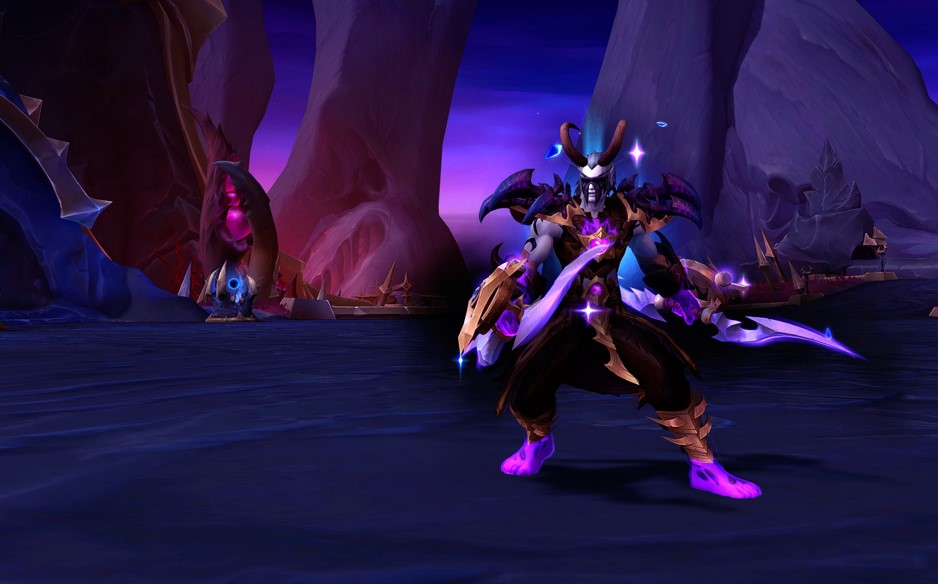


WoW Patch 12.0.5 – Hauptmerkmale, Klassenänderungen und was zu erwarten ist
WoW Patch 12.0.5 bringt Leerenangriffe, das Leerenformungssystem, Klassenänderungen und neue Aktivitäten. Erfahre, wie dieses World of Warcraft-Update die Ausrüstung, das Gameplay und die Meta verändert.

Dota 2 Patch 7.41: Warum Valve Aspekte entfernt hat und was das für das Spiel bedeutet
Dota 2 Patch 7.41 entfernt Aspekte, verändert das Gleichgewicht der Helden, das Drafting und den Spielfluss. Erfahre, was sich geändert hat, warum Valve es getan hat und wie das neue Dota 2 Meta funktioniert.

Fortnite Cheat-Codes & Konsolenbefehle (2026): Was tatsächlich funktioniert
Suchst du nach Fortnite-Cheatcodes im Jahr 2026? Erfahre, welche Codes tatsächlich funktionieren, wie du sie einlösen kannst, wo du legitime Fortnite-Codes findest und wie du Betrug und gefälschte Cheats vermeidest.
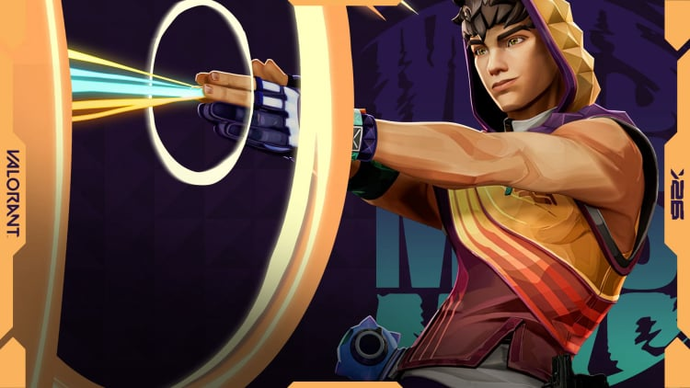

Miks Valorant Guide — Alle Fähigkeiten, Rolle, Beste Teamkollegen und Wie man spielt
Miks ist Valorants 30. Agent und der erste Controller, der heilen kann. Hier ist eine vollständige Übersicht über jede Fähigkeit, wann man welchen Modus verwendet und wie man das Beste aus ihm im Ranglistenspiel herausholt.
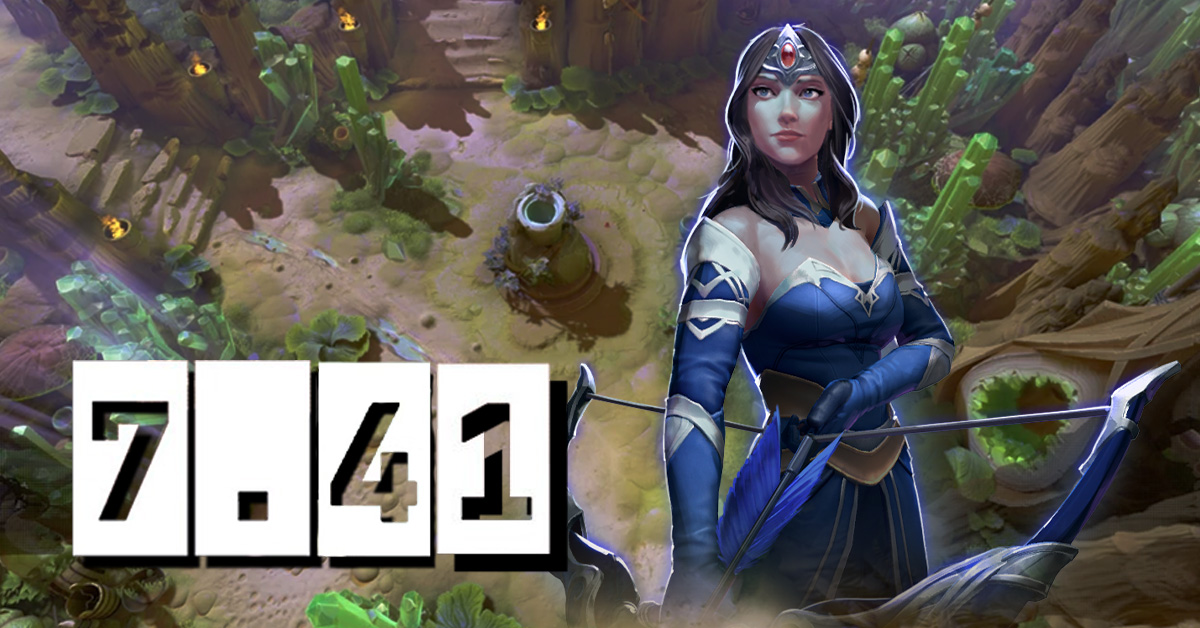
Dota 2 Patch 7.41 — Alle neuen Gegenstände, neutralen Gegenstände und Tier-Liste
Patch 7.41 hat 9 neue Shop-Items und 8 neutrale Items zu Dota 2 hinzugefügt. Hier ist, was jedes Item macht, wer es kaufen sollte und welche neutralen Items es wirklich wert sind, aufgehoben zu werden.
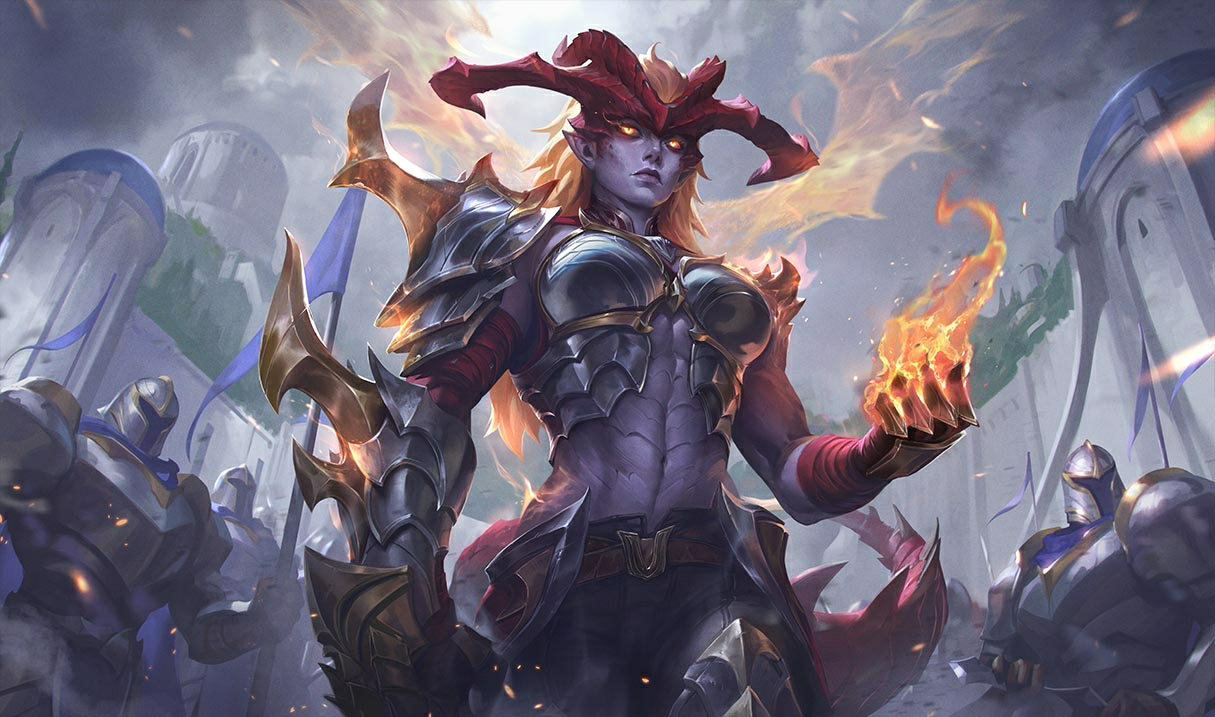

Shyvana-Überarbeitung 2026 — Neue Fähigkeiten, Beste Builds, Skins und Meta-Einfluss
Shyvanas VGU ist endlich in Patch 26.6 angekommen. Neues Kit, neuer Look, neue Drachenform, die sich tatsächlich wie ein Drache anfühlt.




Kommentare zum Artikel
Noch keine Kommentare. Sei der Erste!
Kommentar hinterlassen